
Where to go
Account setup → Style → Logo → Brand
Before you start
Use an existing logo if you have one, or explore the logo options Waltz provides.
Step by step
-
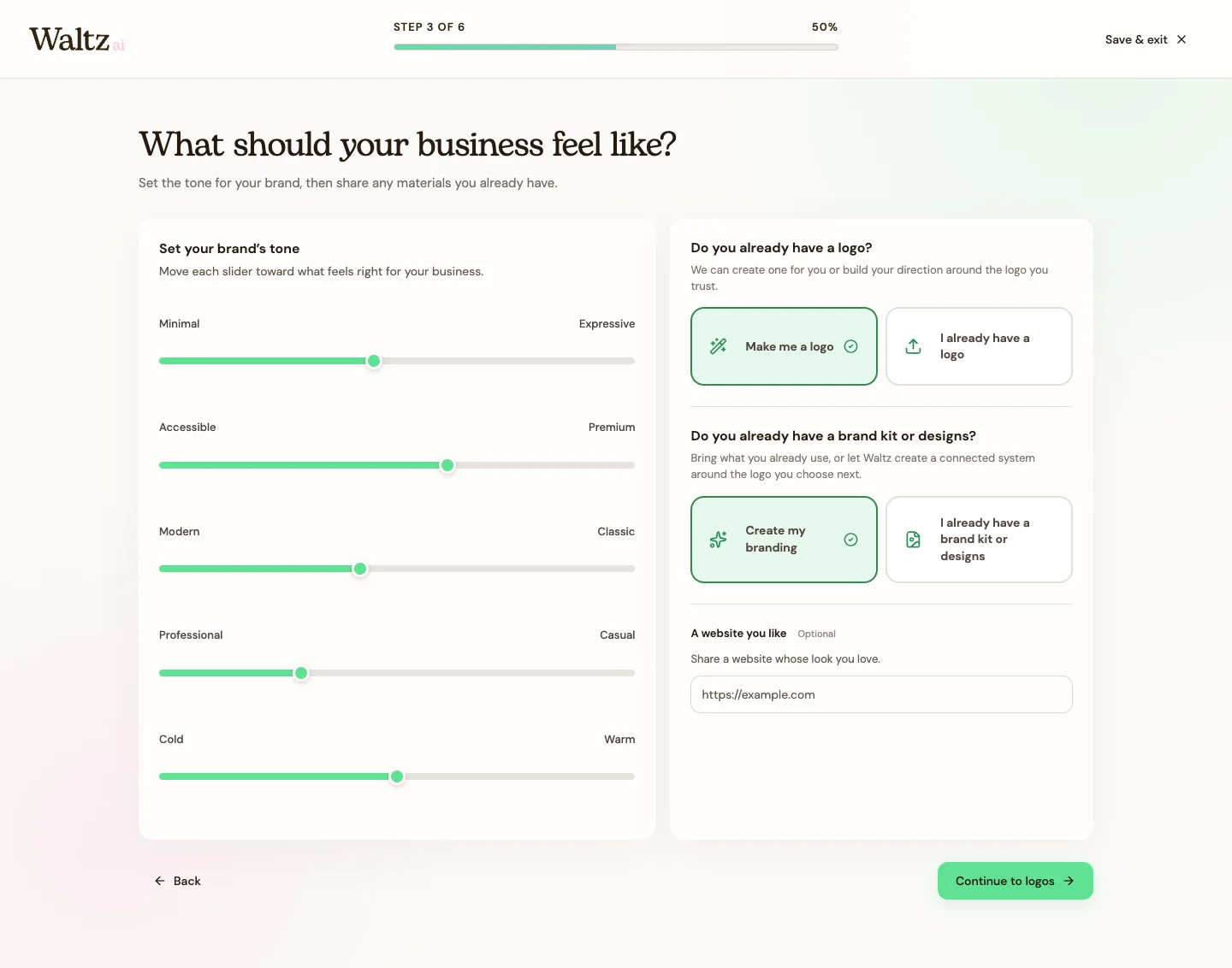
Choose the style you want customers to feel. Adjust the sliders for Minimal–Expressive, Accessible–Premium, Modern–Classic, Professional–Casual, and Cold–Warm. These are separate choices; you can combine them.
-
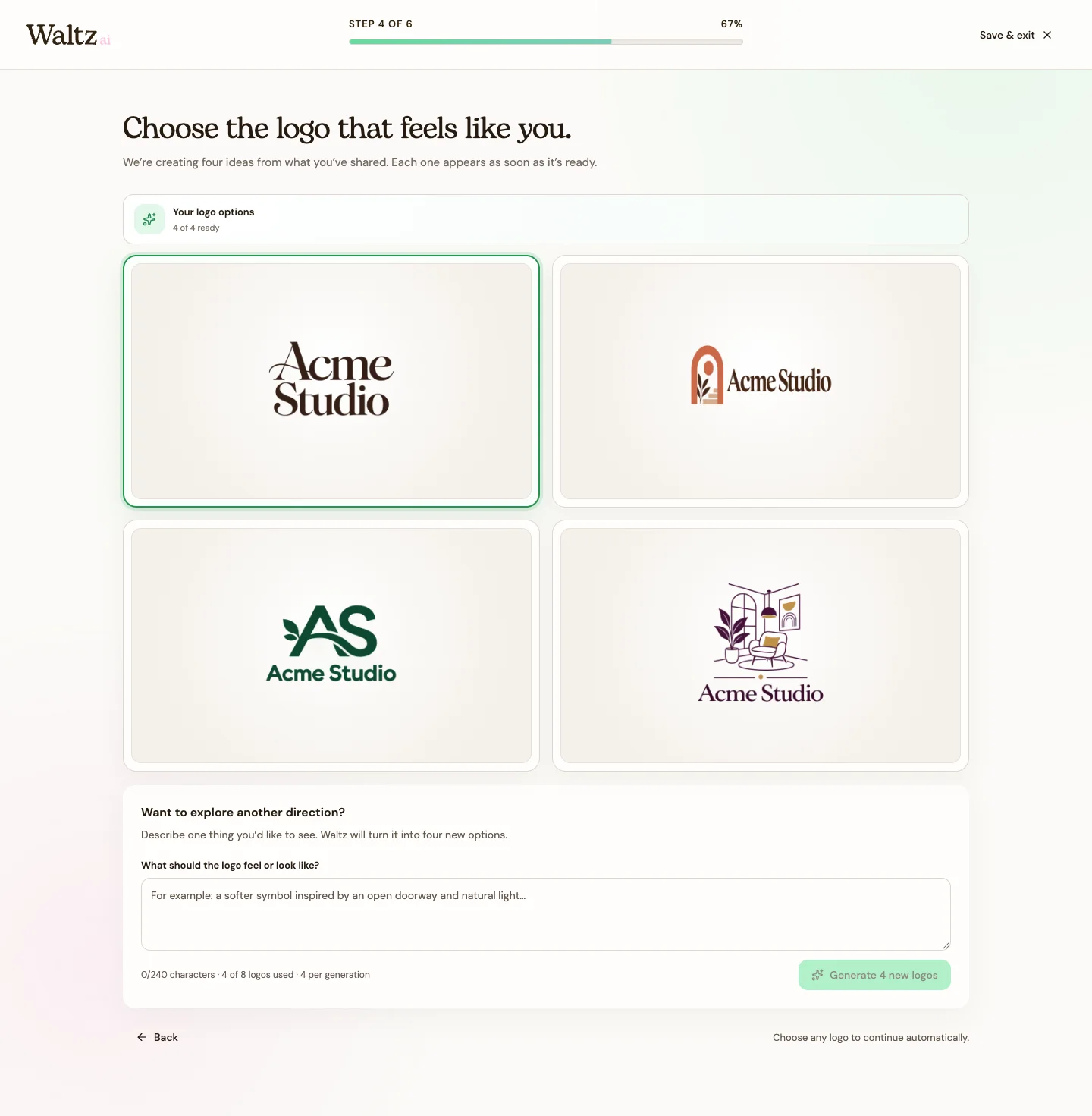
If you have a logo, choose the upload path. If you need one, review the logo options and select the one you prefer.
-
Review the brand directions. Look at the logo, colors, fonts, and website preview together. Choose the direction that best represents your business.
-
Want more choices? Use the generation control to explore up to eight logo options and four brand directions, then choose your favorite.
-
Continue to website creation, then review the result. Use Save & exit when you need to return to your workspace.
See the steps
Use these views to find the controls as you follow the guide.
What happens next
You have selected a starting brand direction for your website and future creations.
Helpful tips
-
Choose for your customers as well as yourself. A calm service business might suit a minimal, professional look; a playful shop may suit more expressive colors.
-
You can refine saved colors, fonts, and your logo later in My Brand.