
Where to go
My Brand → Logo, Colors, or Typography
Before you start
Your saved changes will guide new creations. Existing designs keep their current appearance.
Step by step
-
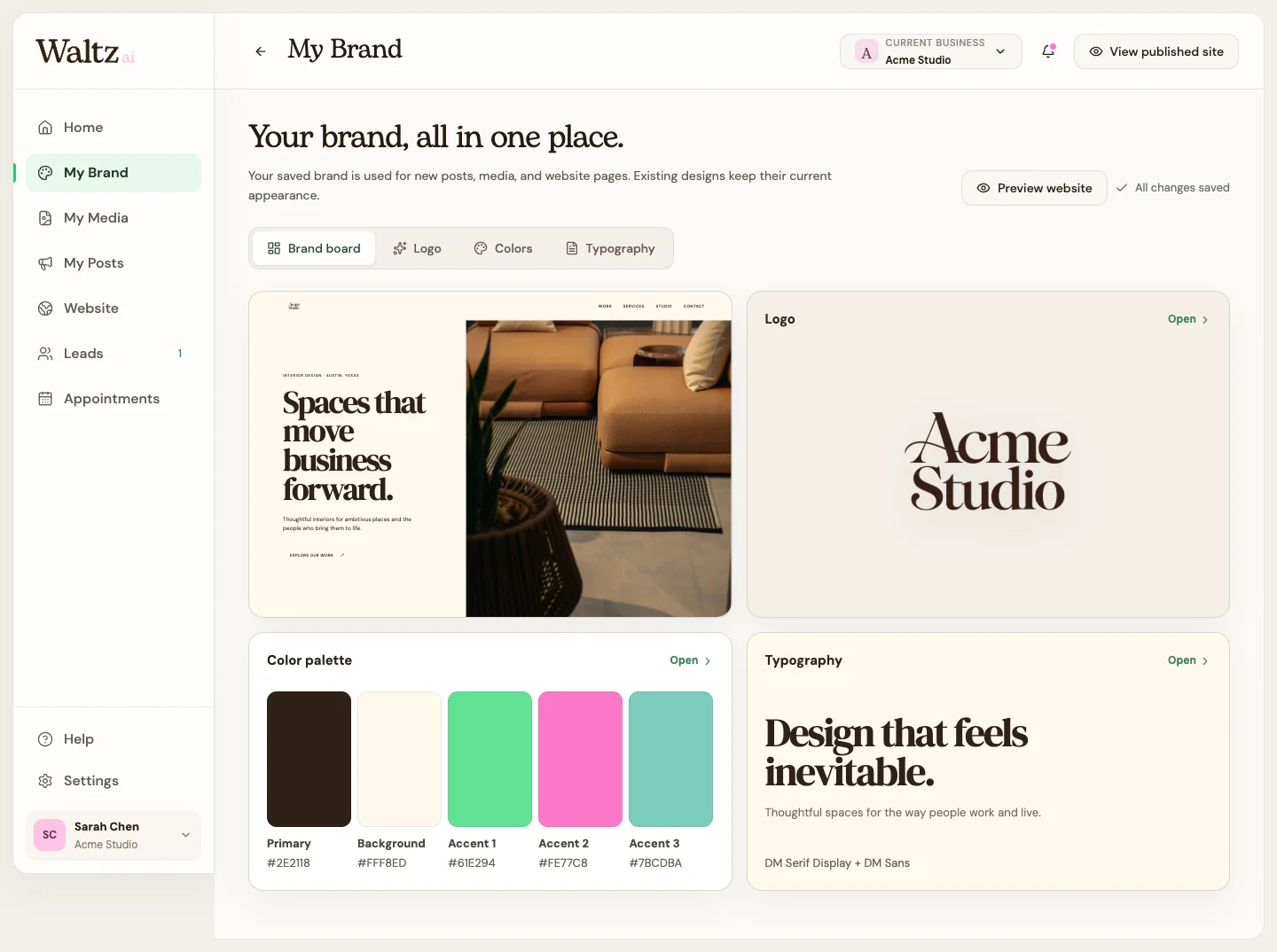
Open My Brand and use Brand board to review your logo, palette, and fonts together.
-
Open Logo to upload a replacement. Review how it looks before saving.
-
Open Colors and choose a palette option or edit a color code. A custom code uses six characters after #, such as #2E2118.
-
Open Typography and choose your headline and paragraph fonts. Read the preview text to check that the pairing is easy to read.
-
Choose Save updates when you are happy. Wait for the saved confirmation before moving on.
-
Review existing pages or posts separately if you want to update their appearance too.
See the steps
Use these views to find the controls as you follow the guide.
What happens next
Your brand is saved and ready to use for new website pages, media, and posts.
Helpful tips
-
A preview change is not saved until you choose Save updates.
-
A brand save does not automatically recolor every existing page or post. This gives you control over already finished work.