
Where to go
Website → Design → Pages → Add
Before you start
Check your plan’s page allowance first. Basic includes one webpage total; Unlimited includes five new webpages per month.
Step by step
-
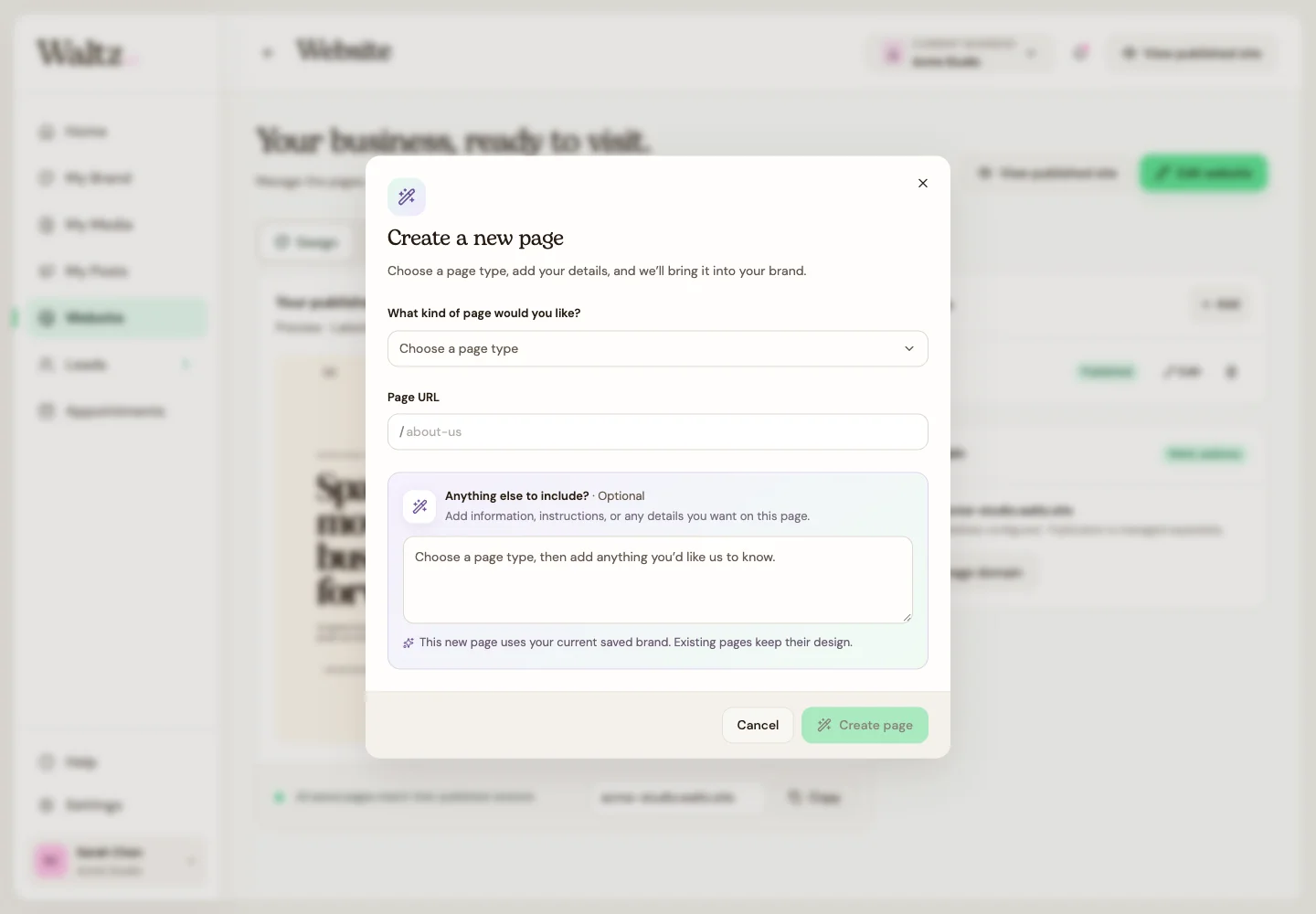
Choose Add in the Pages card. In What kind of page would you like?, select a type such as About us, Services, Contact, Portfolio, Menu, FAQs, or Other.
-
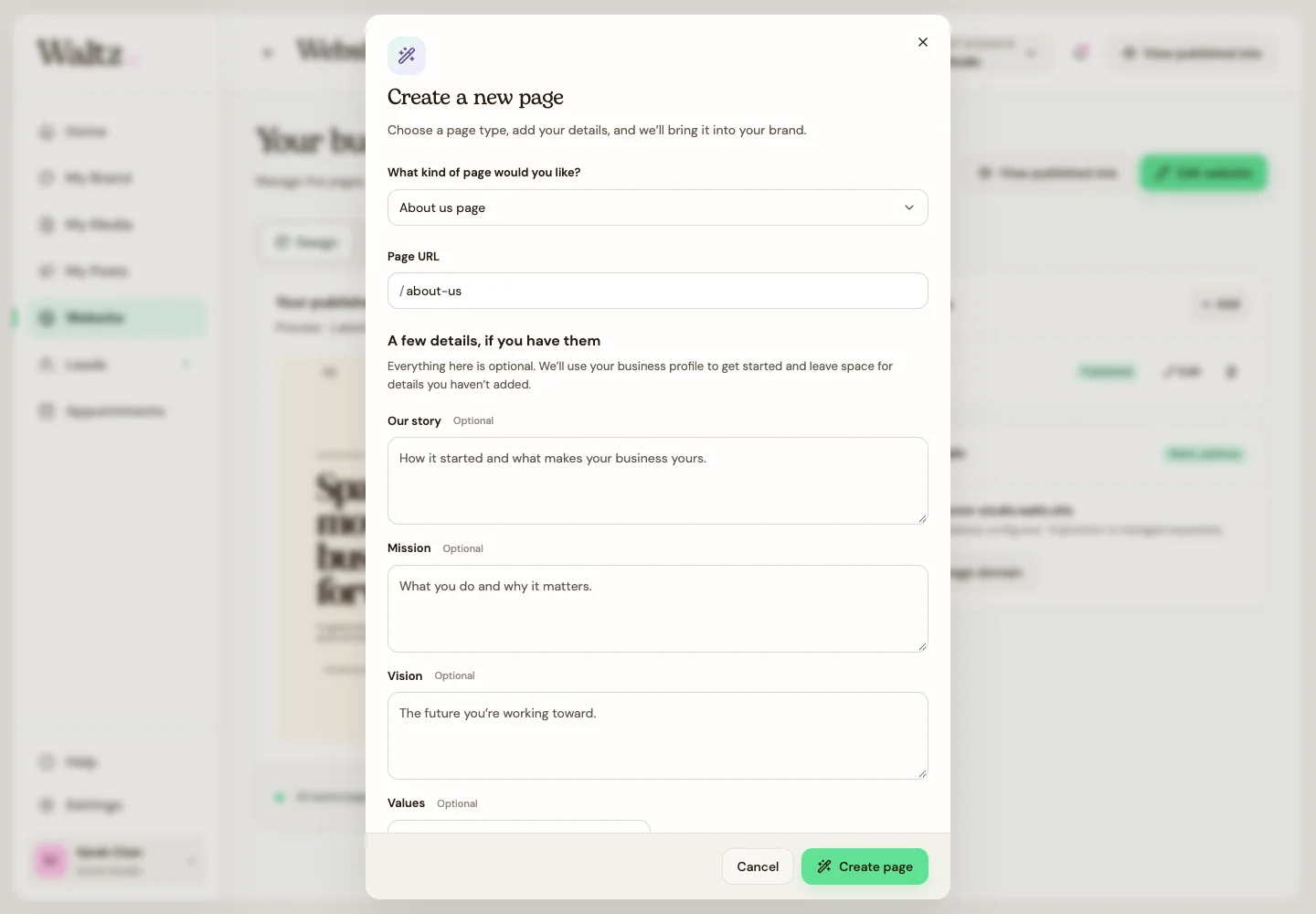
Check the Page URL. Keep it short and recognizable, such as about-us. Each page needs a different URL.
-
Fill in the optional details for that page type. For About us, you can add your story, mission, vision, and values. Scroll inside the dialog to see the rest.
-
Use Anything else to include? for extra context. For Other, give the page a name and describe what it should include.
-
Choose Create page. Wait until the page is ready, then use its Edit control.
-
Review the generated draft, replace any incomplete information, preview it, and publish that page when it is ready.
See the steps
Use these views to find the controls as you follow the guide.
What happens next
A new page draft appears in Pages, using your current saved brand and business details.
Helpful tips
-
The optional fields help you be specific, but you can start without filling every one.
-
Creating a page does not publish it. Existing pages keep their current design when the new page uses your latest brand.