
Where to go
Website editor
Before you start
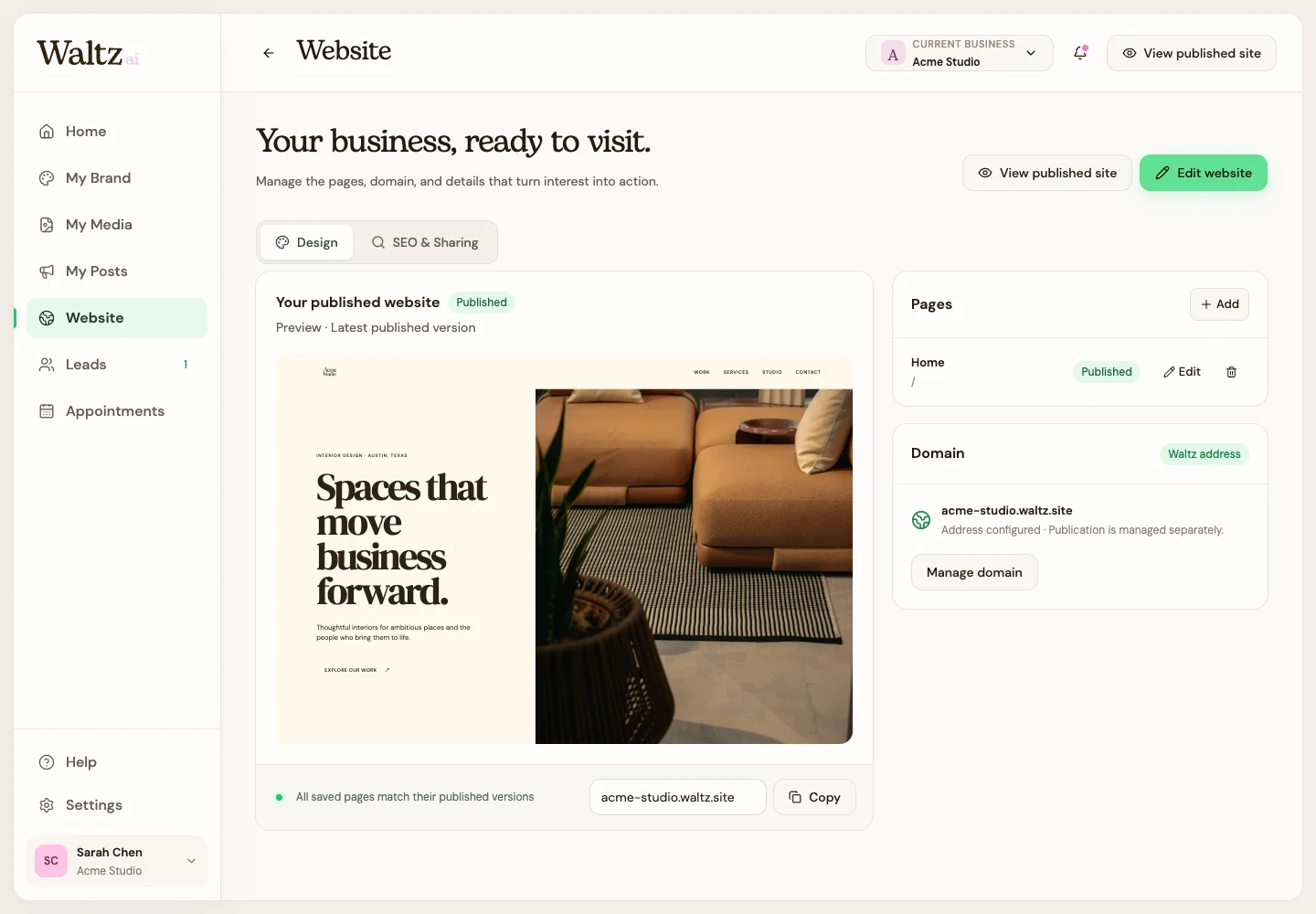
A draft is your working copy. The published version is the copy you have chosen to share.
Step by step
-
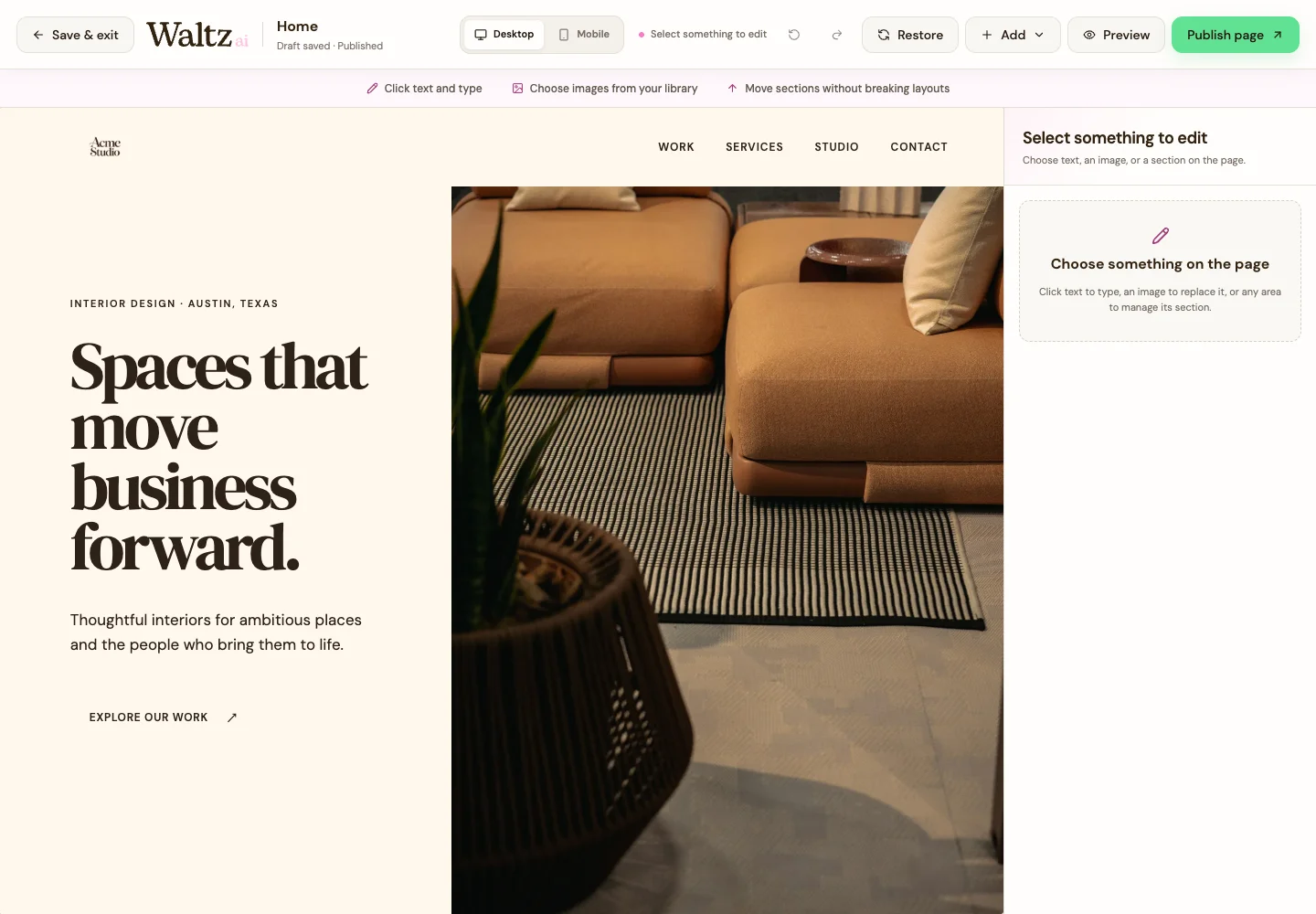
Edit your chosen page and check the saving status. Save & exit keeps your draft and returns you to Website.
-
Use Preview inside the editor to inspect the draft. In Website, View published site shows the latest published version when one exists.
-
When you are ready, choose Publish page. Read the confirmation for the named page, then confirm.
-
Wait for publishing to finish and check the resulting page status. During an update, the previous published version remains available for preview.
-
If you want to return the draft to its last published version, choose Restore and read the named-page confirmation carefully. Restoring replaces that page’s unpublished draft edits.
See the steps
Use these views to find the controls as you follow the guide.
What happens next
You know whether you have only saved a draft or completed the separate page-publishing action.
Helpful tips
-
“Unpublished changes” means your draft differs from the published copy. It does not mean the published page has disappeared.
-
Publishing and restoring apply to the selected page. Review the page name in the confirmation.
-
If saving fails, keep the editor open and use its retry action before leaving.