
Where to go
Website → the page’s Edit control
Before you start
Choose the page you want to change. An active plan is needed; a plan prompt can appear if your access is not active.
Step by step
-
Open Website. In Pages, find the page and choose Edit. Use the page-specific Edit control when you have more than one page.
-
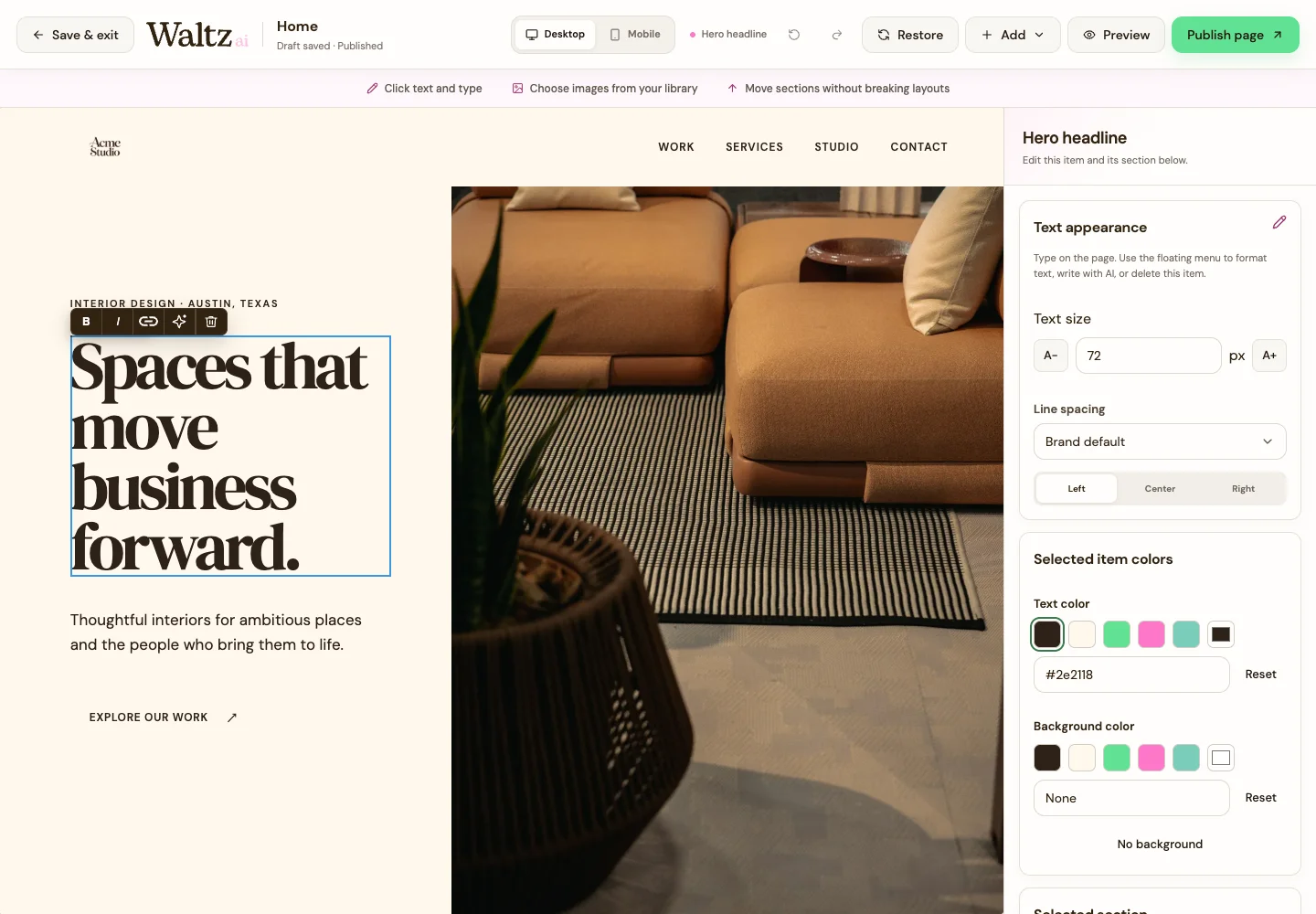
Click the text you want to change. Activate inline editing on the page; double-click if needed. Replace the words with your own.
-
Use the floating formatting controls and the side panel for text size, line spacing, alignment, and colors.
-
Use Undo if a change is not what you wanted. Use Redo to put it back.
-
Choose Preview and check both desktop and mobile sizes. Check headings, spelling, contact details, and your main button.
-
Use Save & exit to keep a draft. Use Publish page separately when the selected page is ready.
See the steps
Use these views to find the controls as you follow the guide.
What happens next
Your selected page has an updated draft. Its published version stays separate until you publish.
Helpful tips
-
Write one clear action for visitors, such as “Book a consultation” or “Ask for a quote.”
-
If you see an unsaved warning, retry saving before leaving. Publishing is not needed to save your draft.