
Where to go
Website editor → select an image or link
Before you start
Have your replacement image or destination address ready.
Step by step
-
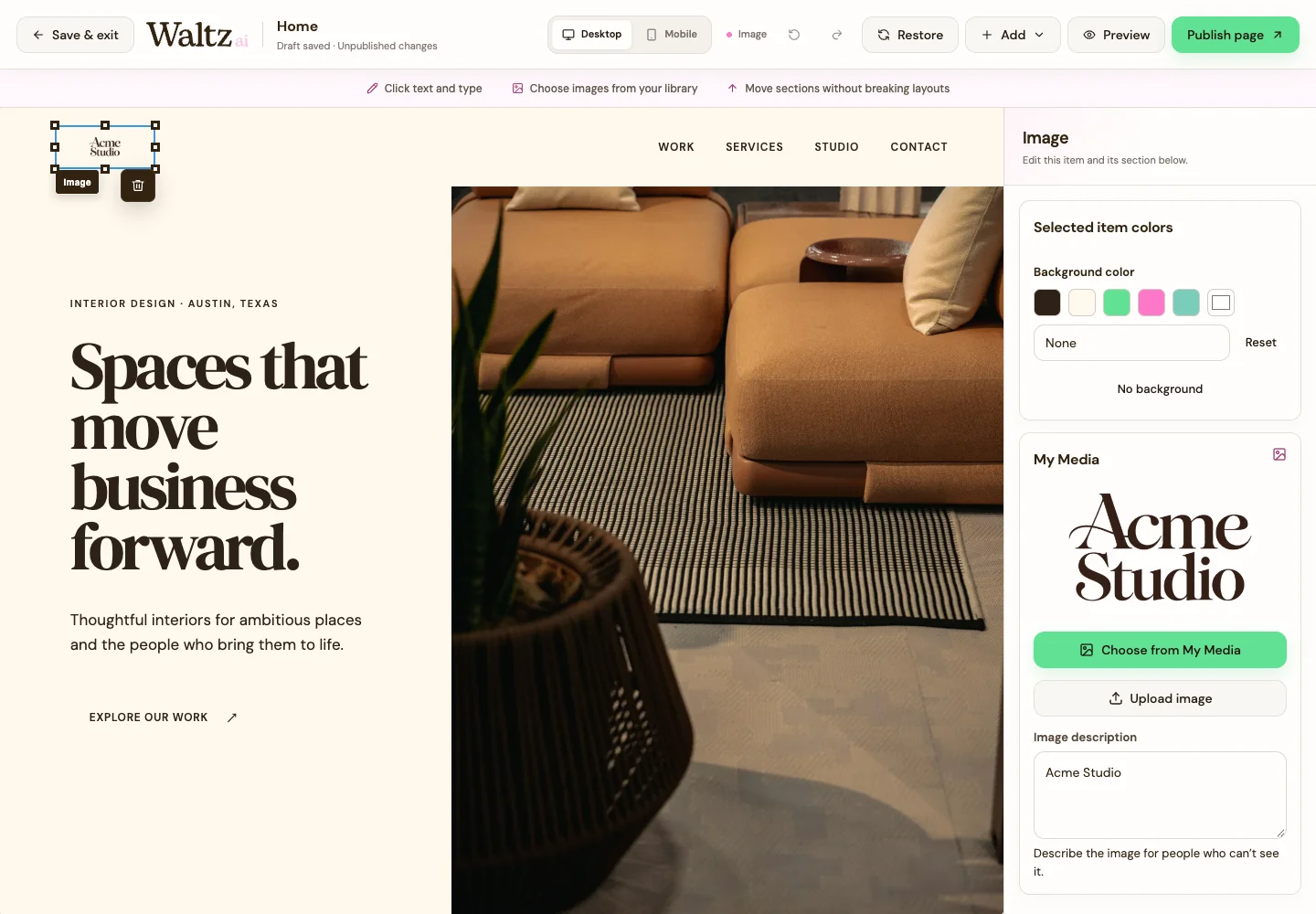
Click an image on the page. Choose Choose from My Media to reuse a saved image, or Upload image for a new one.
-
For a direct editor upload, use an image smaller than 5 MB. My Media has different upload limits; see Upload and organize your files.
-
Enter a useful Image description, such as “Sunlit kitchen with oak cabinets.” This helps people who cannot see the image.
-
Click a button or linked text. In Link destination, enter the page or website address you want visitors to open. For a full website address, include https://.
-
Use Preview to check the image and link destination. Check the mobile view too.
-
Save your draft and publish the selected page when it is ready.
See the steps
Use these views to find the controls as you follow the guide.
What happens next
The image and destination in your page draft match what you want visitors to see and do.
Helpful tips
-
Use a specific button label: “See our services” is clearer than “Click here.”
-
To add a new image or video area, use Add → Media. Replacing an existing image uses the image selection panel.