
Where to go
My Media → Create with AI → Image
Before you start
Check your image allowance in Plan & billing. Have a simple idea for the scene and where you will use it.
Step by step
-
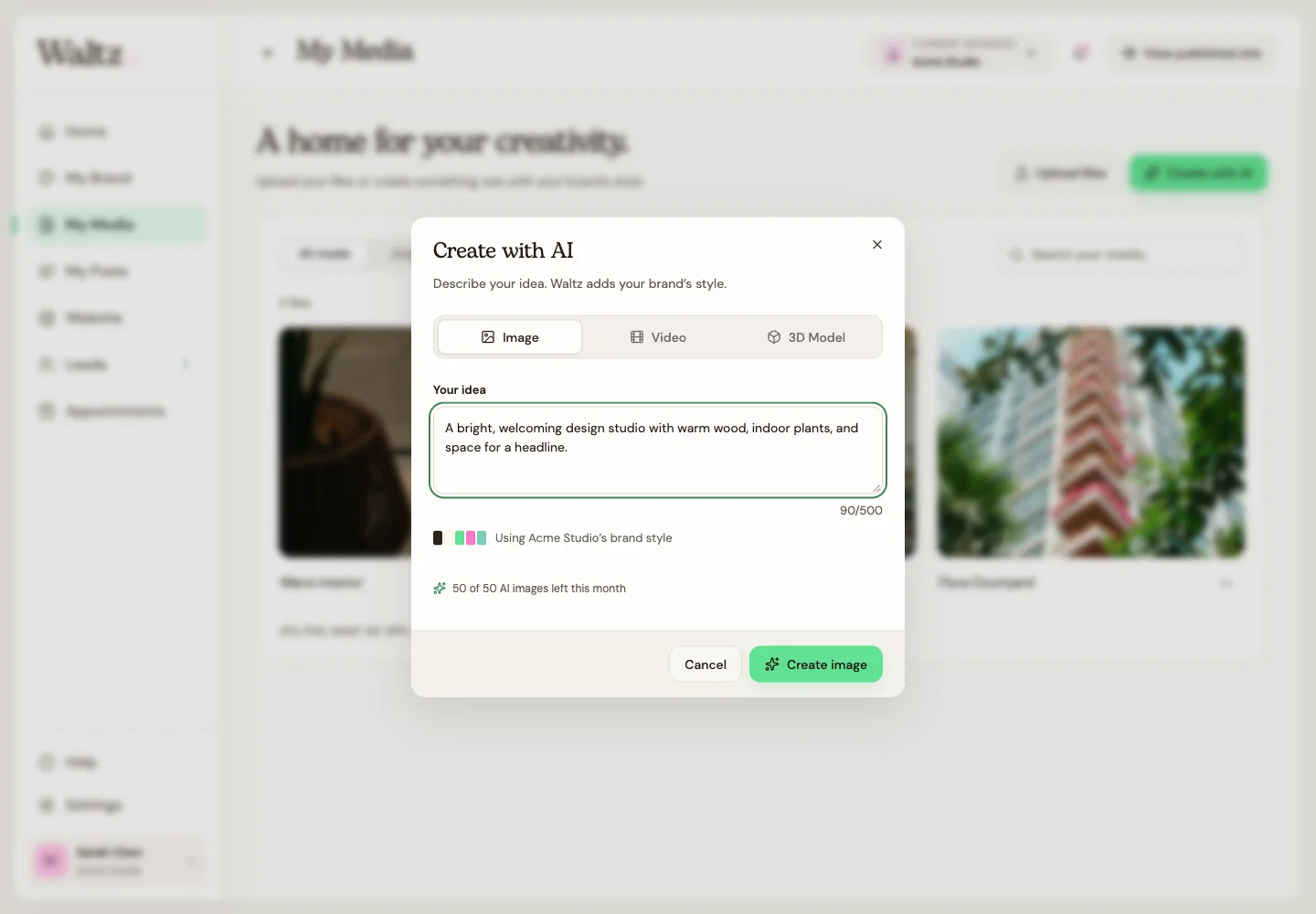
Choose Create with AI and select Image.
-
In Your idea, describe the subject, feeling, and important details. You have up to 500 characters.
-
Try: “A bright, welcoming design studio with warm wood, indoor plants, and space for a headline.”
-
Check the brand-style context, then choose Create image.
-
Wait for the result to appear in My Media. Open it and review whether it fits the purpose.
-
Rename it so you can find it later. Use it in a website page or post, or create another result if your allowance permits.
See the steps
Use these views to find the controls as you follow the guide.
What happens next
An image entry is available in My Media for you to review and reuse.
Helpful tips
-
Describe what customers should see; you do not need model names or technical settings.
-
Creating another image uses another image allowance. Uploading your own image does not.