
Where to go
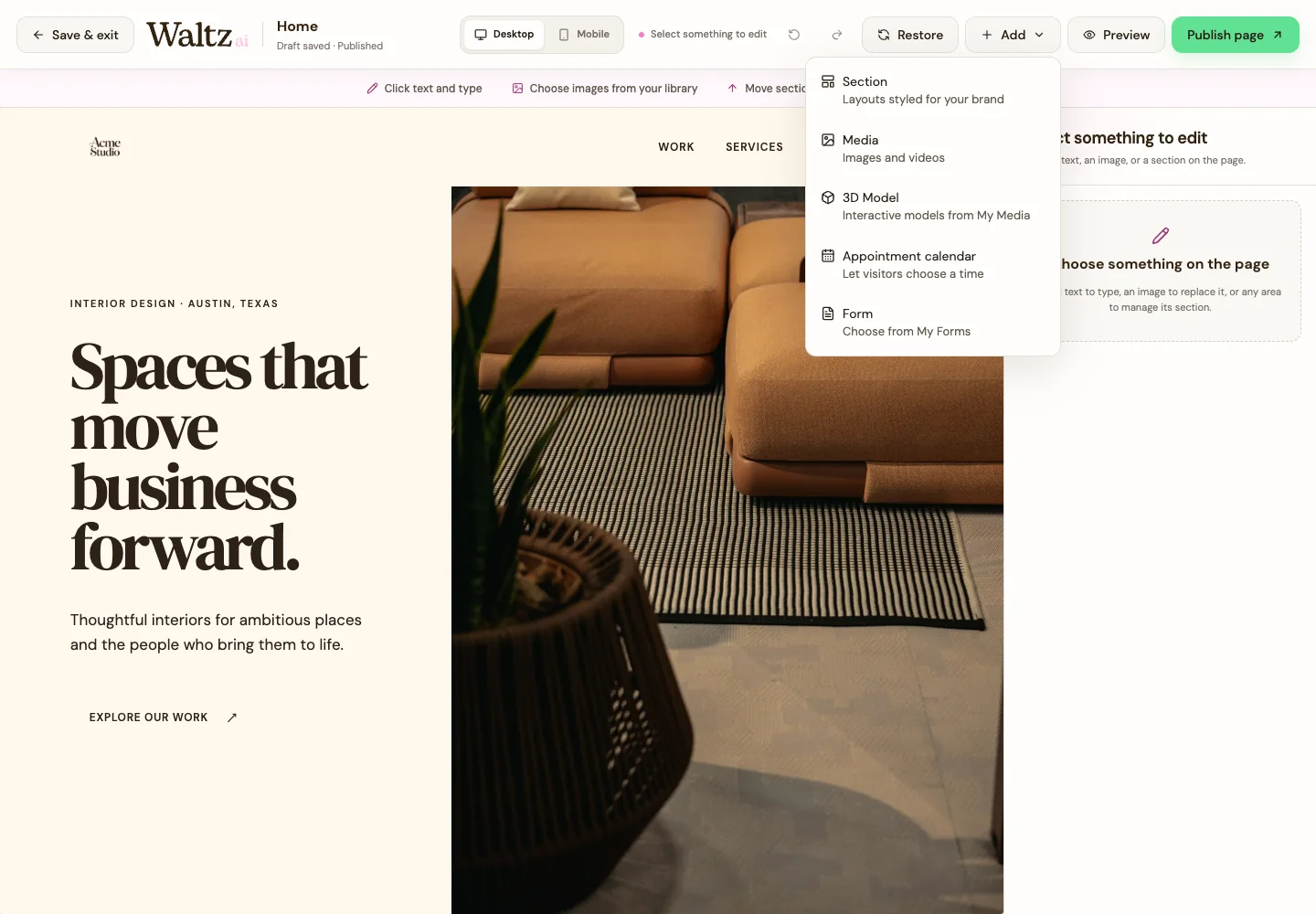
Website editor → Add → Section
Before you start
A section is a group of content, such as an introduction, service list, gallery, or contact area.
Step by step
-
Choose the area of the page near where you want the new section.
-
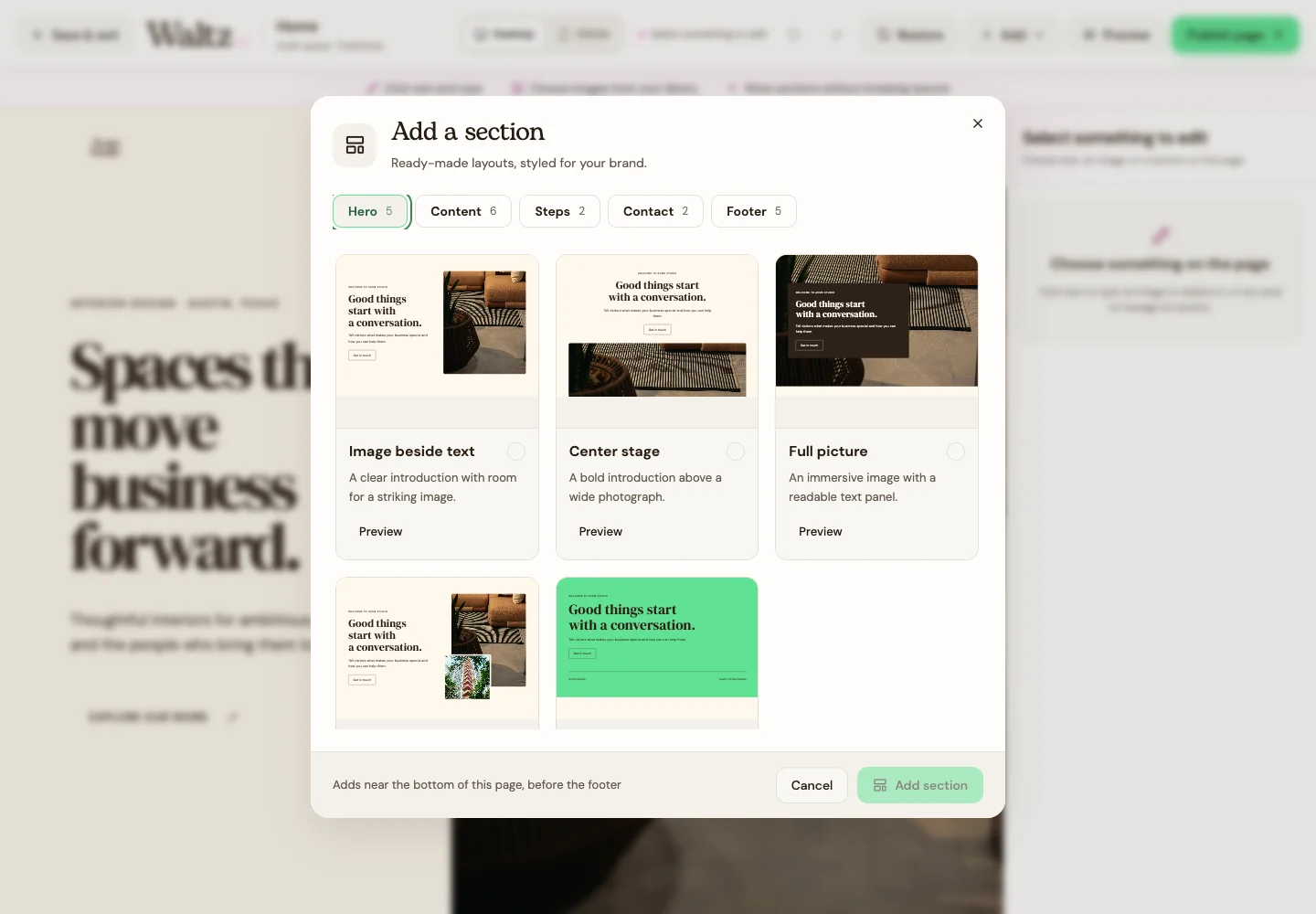
Open Add → Section. Browse the available layouts and choose one that suits the information you want to show.
-
Add the section, then replace its preview text and images with your business details.
-
Use the Selected section controls to move it up or down, duplicate it, or remove it. Use Undo if you remove the wrong section.
-
Preview the whole page on desktop and mobile. Check that the order answers the visitor’s questions naturally: what you offer, why choose you, and how to contact you.
-
Save the draft, then publish the page when you have finished reviewing it.
See the steps
Use these views to find the controls as you follow the guide.
What happens next
Your page has the section you need in the right place.
Helpful tips
-
Keep each section focused on one idea. A shorter useful page is easier to follow than a long page with repeated information.
-
Adding a section does not create another webpage.