
Where to go
Website editor → Add → Form
Before you start
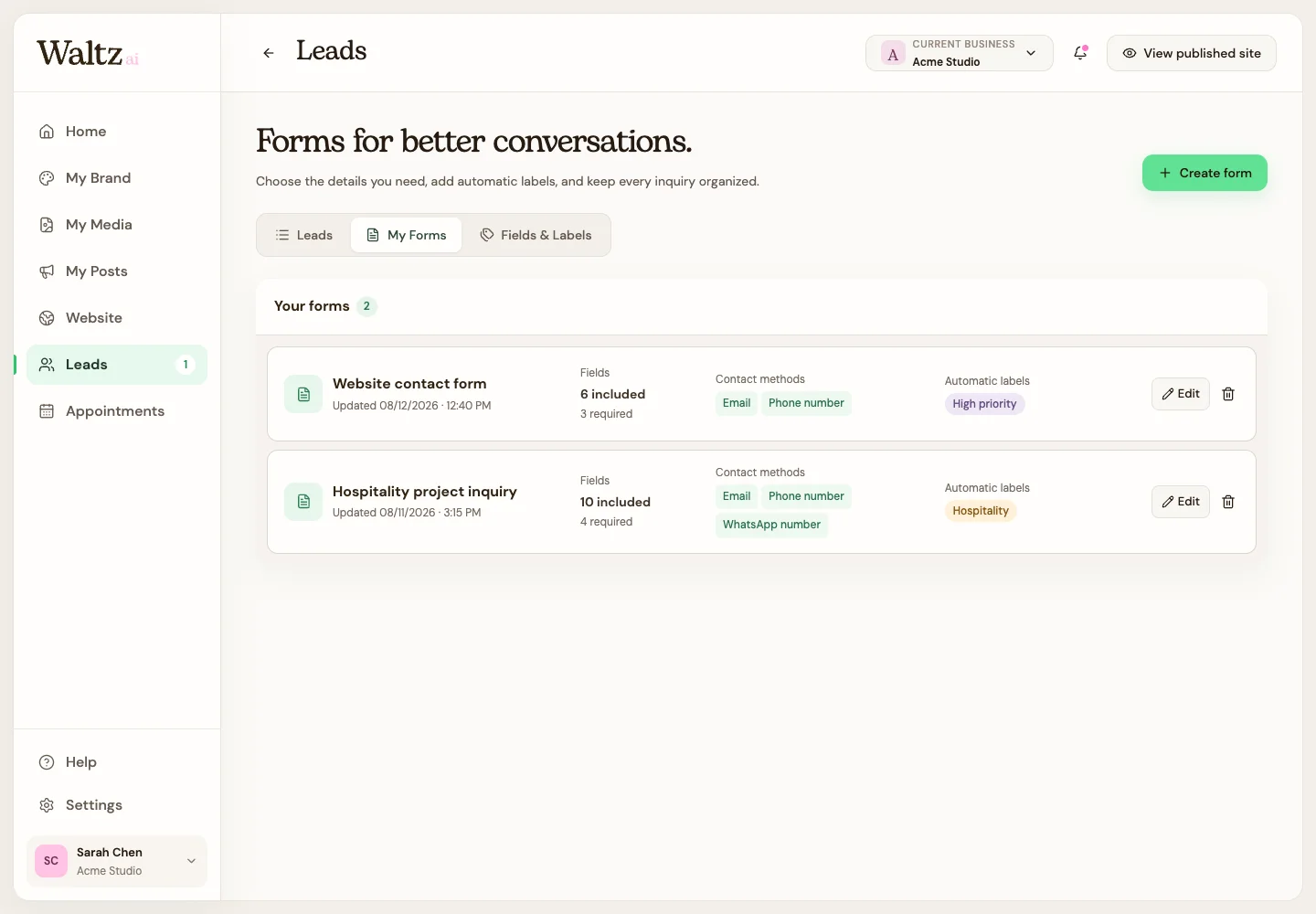
First save a form in Leads → My Forms. Use a paid plan to publish.
Step by step
-
Open the page where the inquiry form belongs. A Contact page or the end of your home page can be a useful starting point.
-
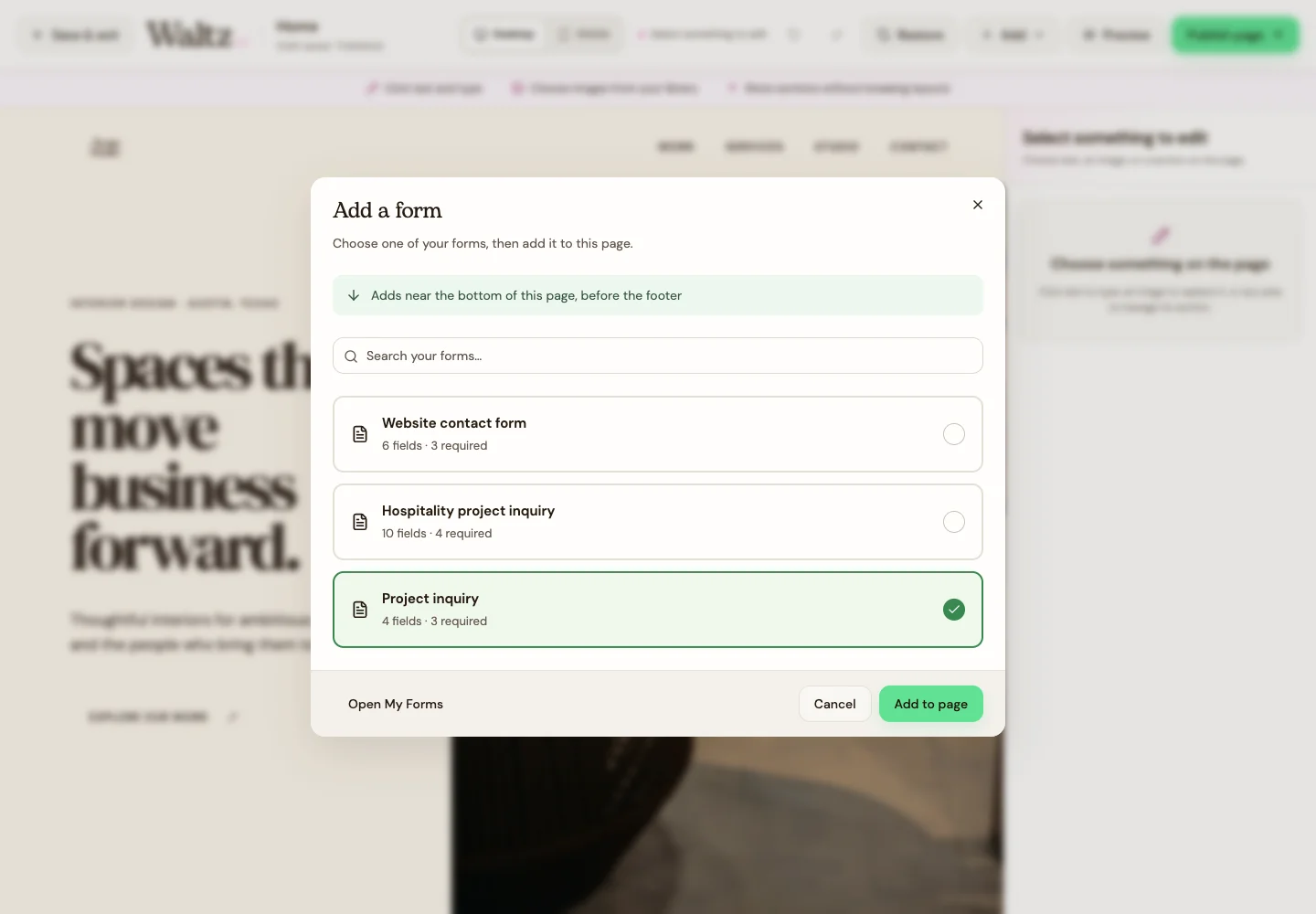
Select the area near where you want the form, then choose Add → Form.
-
Choose the saved form from My Forms and add it to the page.
-
Review the surrounding heading and instructions. Tell visitors what the form is for and what information to include.
-
Preview on desktop and mobile, then save the draft and publish the page when ready.
-
Submit a test inquiry from your published website. Open Leads and check that the contact details and message arrived as expected.
See the steps
Use these views to find the controls as you follow the guide.
What happens next
Visitors can send an inquiry from your published page, and you can follow up in Leads.
Helpful tips
-
If the picker is empty, return to My Forms and create a form first.
-
The first-time guide’s Back to Leads control lets you return to continue setup.