
Where to go
My Posts → Video
Before you start
This uses the My Posts video allowance, separate from My Media videos.
Step by step
-
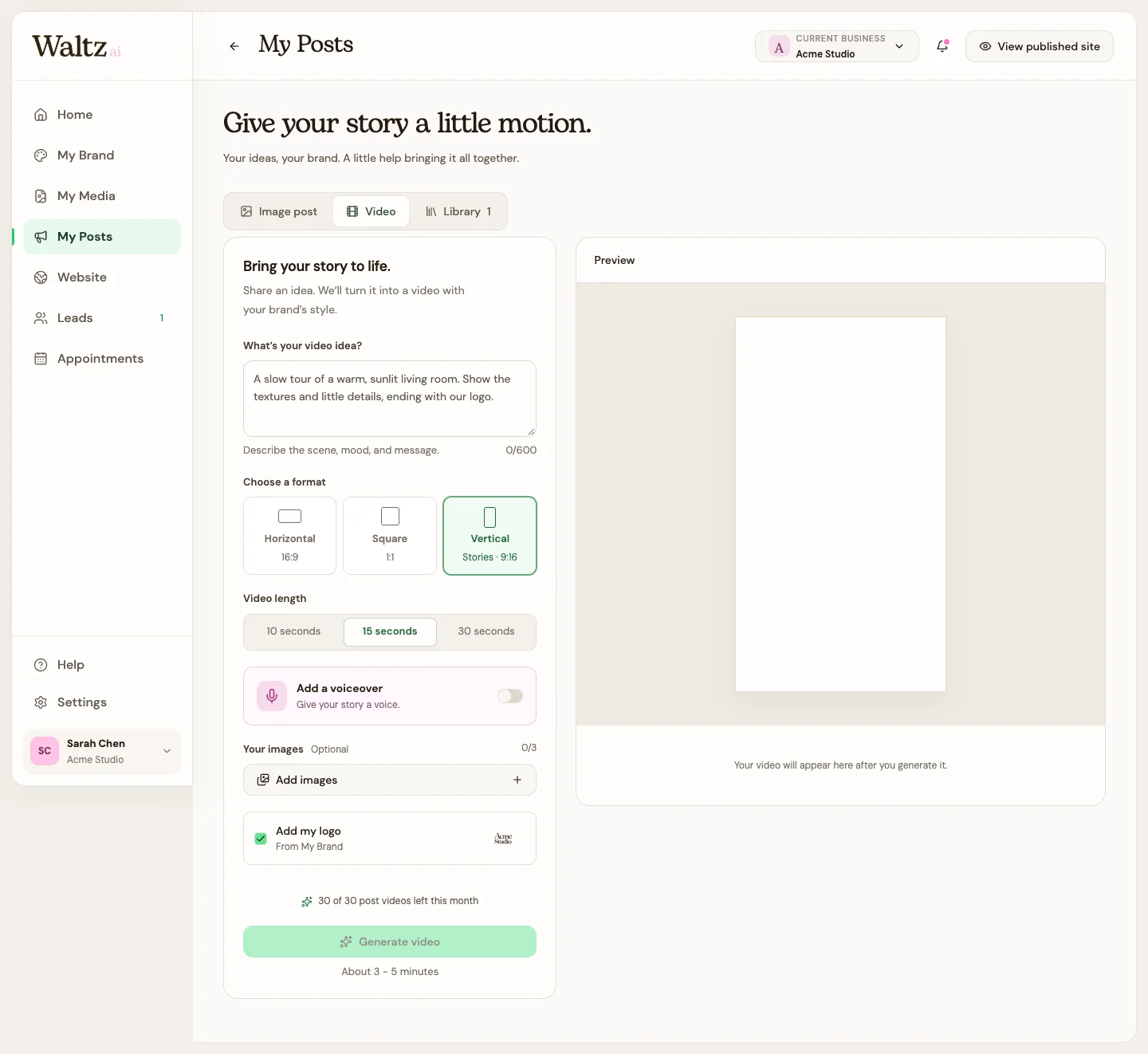
Choose Video. In What’s your video idea?, describe the scene, mood, and message in up to 600 characters.
-
Choose a Horizontal, Square, or Vertical format based on where you intend to share it.
-
Choose Video length: 10, 15, or 30 seconds.
-
Turn on Add a voiceover if you want that option. Optionally select up to three images and choose whether to add your logo.
-
Choose Generate video. Wait for the result, then review the whole preview rather than only its first frame.
-
Choose Save to library to keep it. Use Export from the saved creation when you are ready to share the file.
See the steps
Use these views to find the controls as you follow the guide.
What happens next
A video creation is saved in My Posts → Library.
Helpful tips
-
Example idea: “A slow tour of a sunlit living room. Show textures and small details, ending with our logo.”
-
Use the chosen shape consistently when placing your message and images.
-
The trial allows one image post OR one post video total, so choose which you want to try.