
Where to go
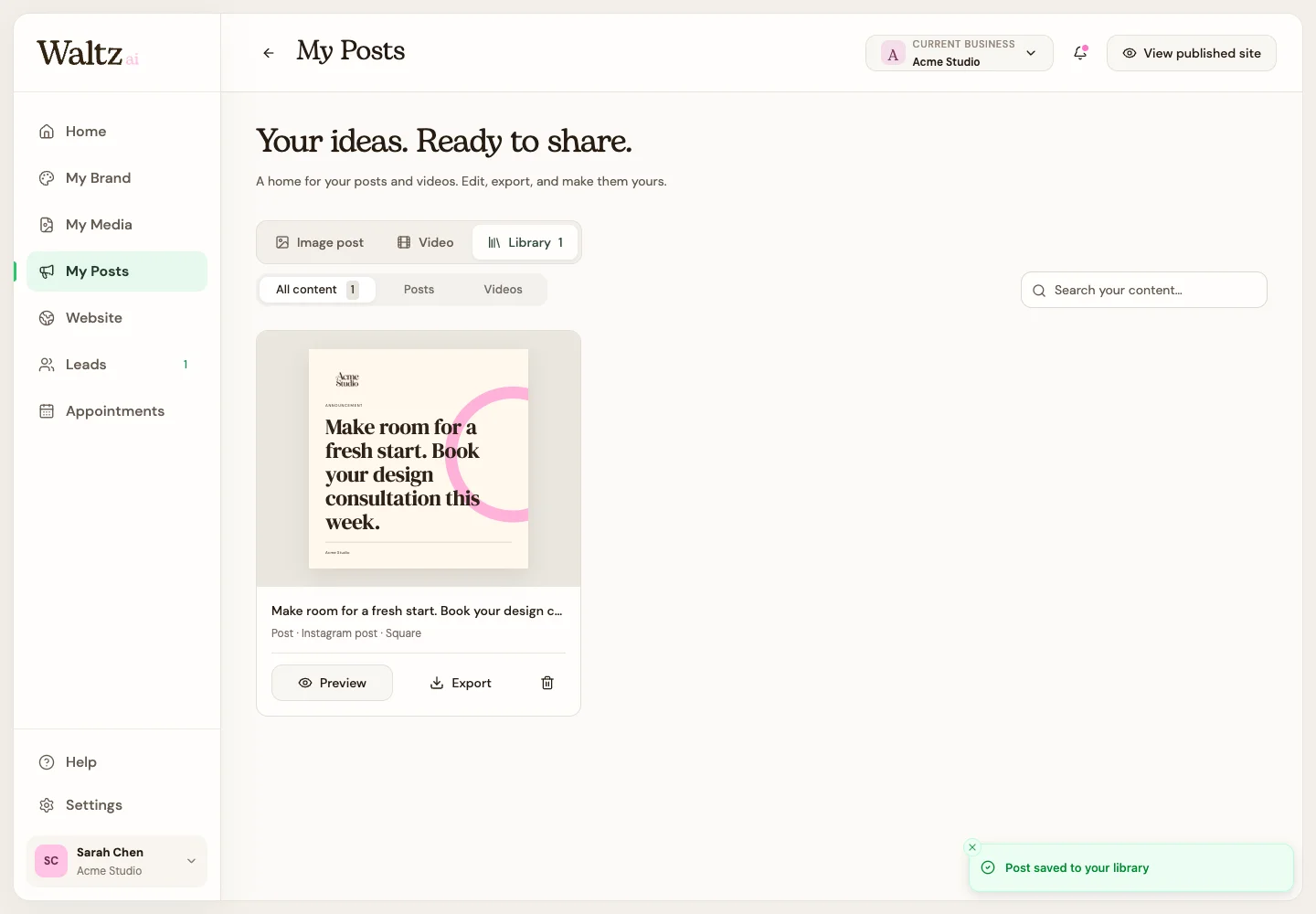
My Posts → Library → a saved image post
Before you start
Save the result to your library before opening the editor.
Step by step
-
Open Library and find your saved image post. Choose Preview, then Edit design in the preview dialog.
-
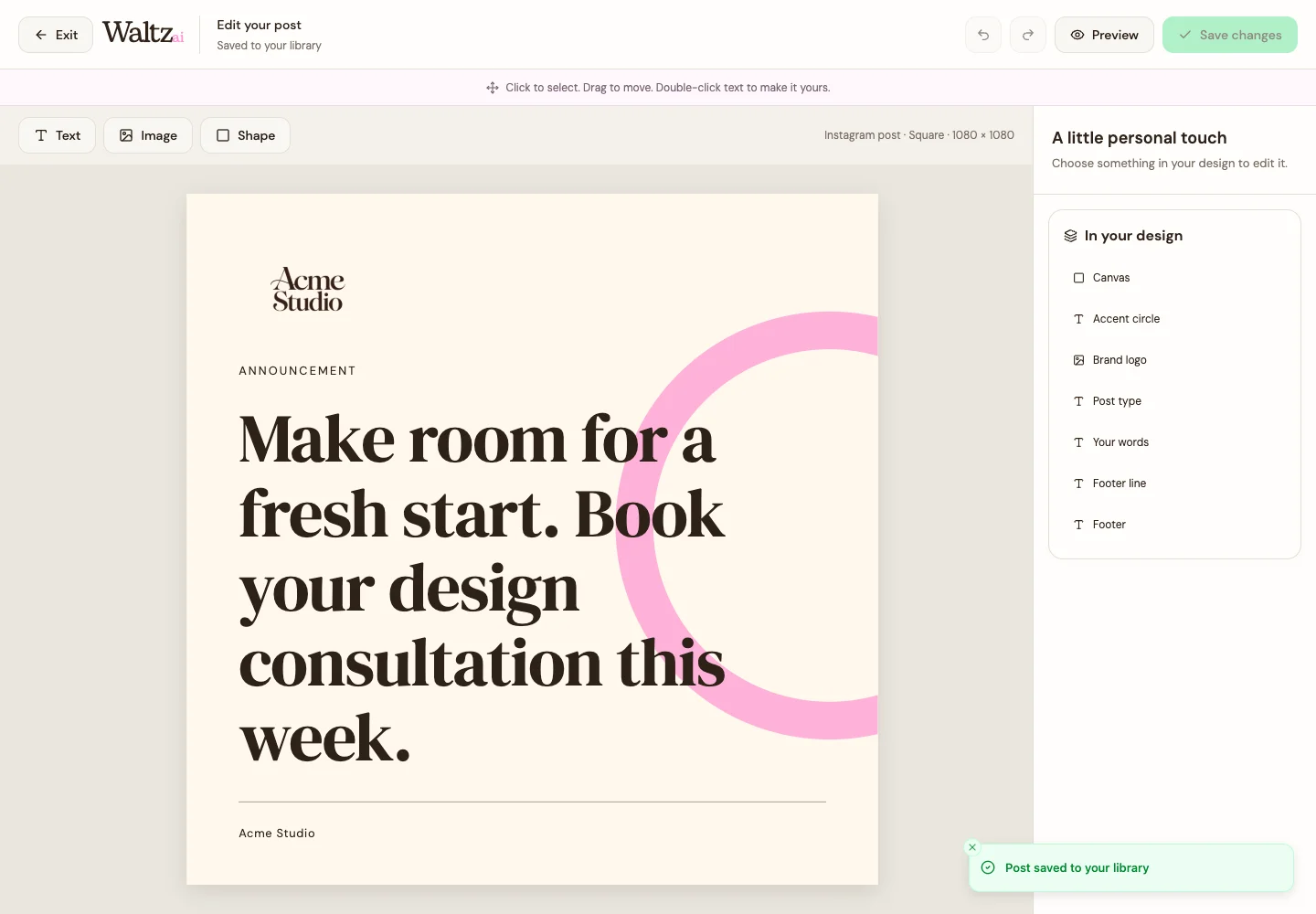
Select the text to update your words and formatting. Use the text-writing helper when you want a reviewed suggestion.
-
Select an image to replace it from My Media or use the supported upload/create controls. Review the crop and fit.
-
Use the available color and object controls to refine the selected part of the design. Undo a change if needed.
-
Preview the result, then choose Save changes. Wait for the save to finish before leaving.
-
Open the saved version again to confirm the update. Choose Export, review the format, and save the file for sharing.
See the steps
Use these views to find the controls as you follow the guide.
What happens next
Your saved image-post design contains the edits you approved.
Helpful tips
-
Existing posts keep the brand snapshot used when they were created. Changing My Brand does not redesign them automatically.
-
The image-post editor is not a full video timeline editor.