
Where to go
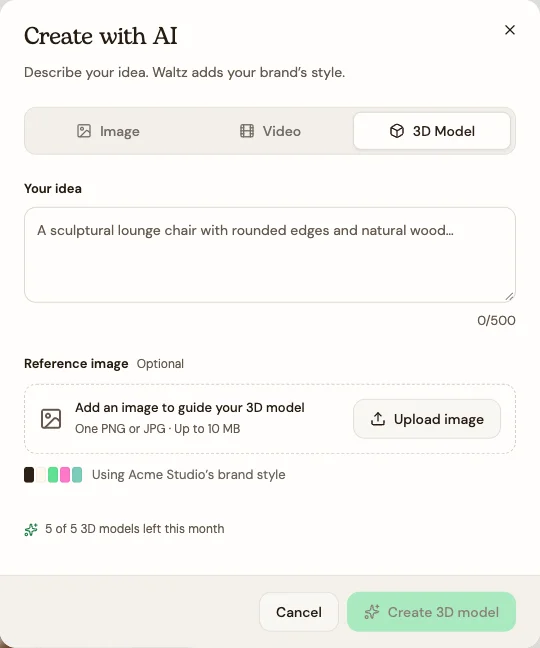
My Media → Create with AI → 3D Model
Before you start
Unlimited includes five generated 3D models per month. Check your remaining allowance before starting.
Step by step
-
Choose Create with AI and select 3D Model. If you see the Unlimited access message, review your plan first.
-
Describe the object, shape, and materials in Your idea. Example: “A sculptural lounge chair with rounded edges and natural wood.”
-
Optionally add one Reference image: PNG or JPG, up to 10 MB. Use Replace or remove it if you chose the wrong photo.
-
Choose Create 3D model and wait for the library result.
-
Preview the model, check its appearance, and use Download to save the OBJ file if you need a copy.
-
To place an eligible model on a website page, open the editor and use Add → 3D Model. Review the page before publishing.
See the steps
Use these views to find the controls as you follow the guide.
What happens next
A 3D model entry is available to preview in the media library.
Helpful tips
-
The reference photo guides the model request; it is not added as a separate media-library image.
-
Use the model to present your idea visually. Review its shape and proportions before placing it on a page.