
Where to go
Leads → Import leads
Before you start
Use a paid plan. Your file must be CSV or XLSX, under 20 MB, with no more than 10,000 lead rows.
Step by step
-
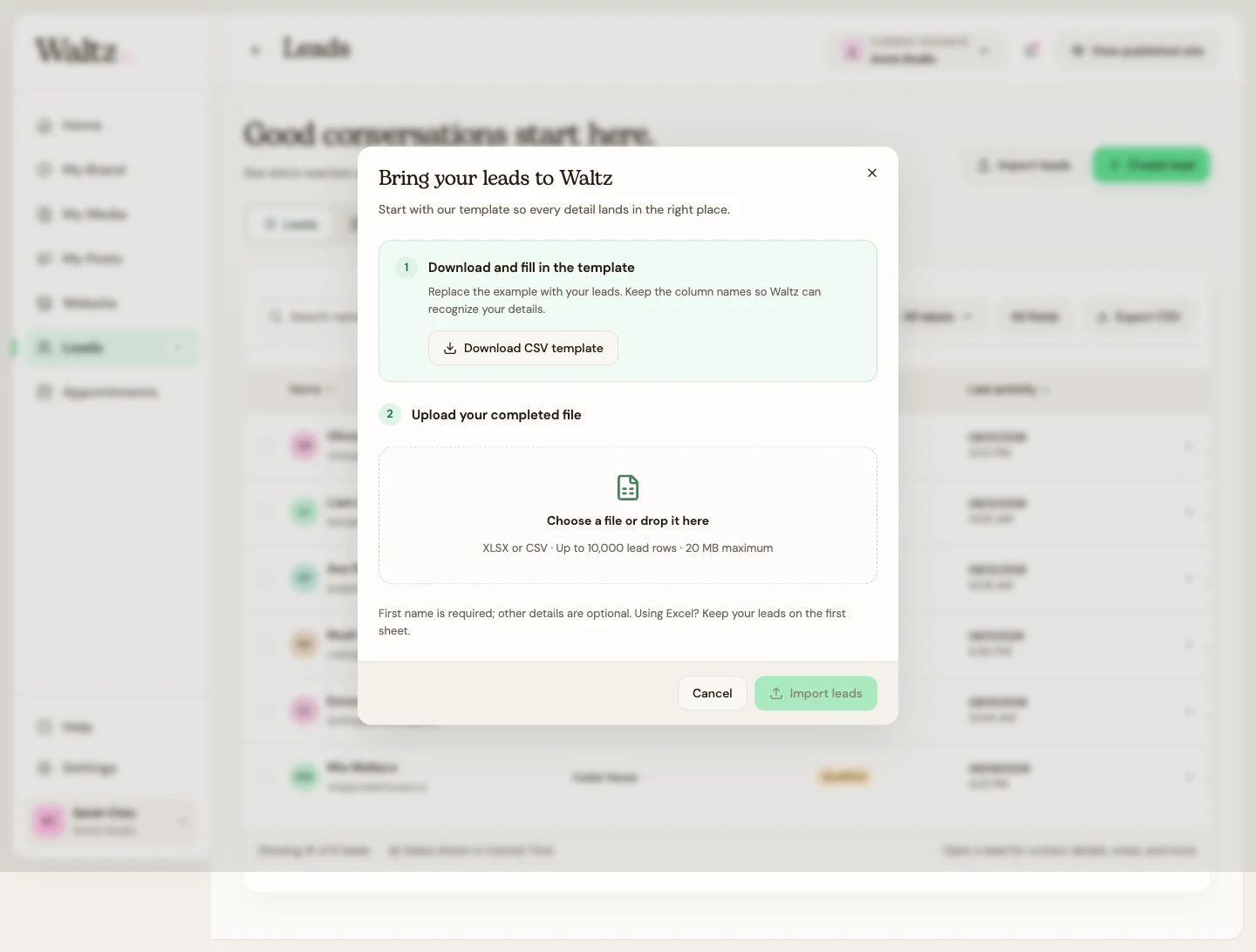
Choose Import leads, then Download CSV template. Replace the example rows with your leads and keep the header names.
-
Fill in First name for every lead. Optional supported columns are Last name, Email, Phone number, Company, WhatsApp number, Message, and Budget.
-
If you use Excel, keep the leads on the first worksheet. Save as XLSX or export that sheet as CSV.
-
Upload the completed file. Read the preview: lead count, matched columns, skipped columns, and example records.
-
Correct any error before importing. The message identifies a row with a missing first name or invalid email.
-
Confirm the import. Imported leads are added as New. Existing leads stay unchanged; duplicates are not merged.
See the steps
Use these views to find the controls as you follow the guide.
What happens next
Your imported contacts appear as new leads without replacing existing records.
Helpful tips
-
Remove duplicate rows before importing, and avoid importing the same file twice.
-
Extra columns are skipped. Labels, statuses, notes, and custom fields are not supported import columns. Add these details in Waltz after importing.