
Where to go
Website editor → select text → the floating AI writing control
Before you start
Start with the heading or paragraph you want to improve.
Step by step
-
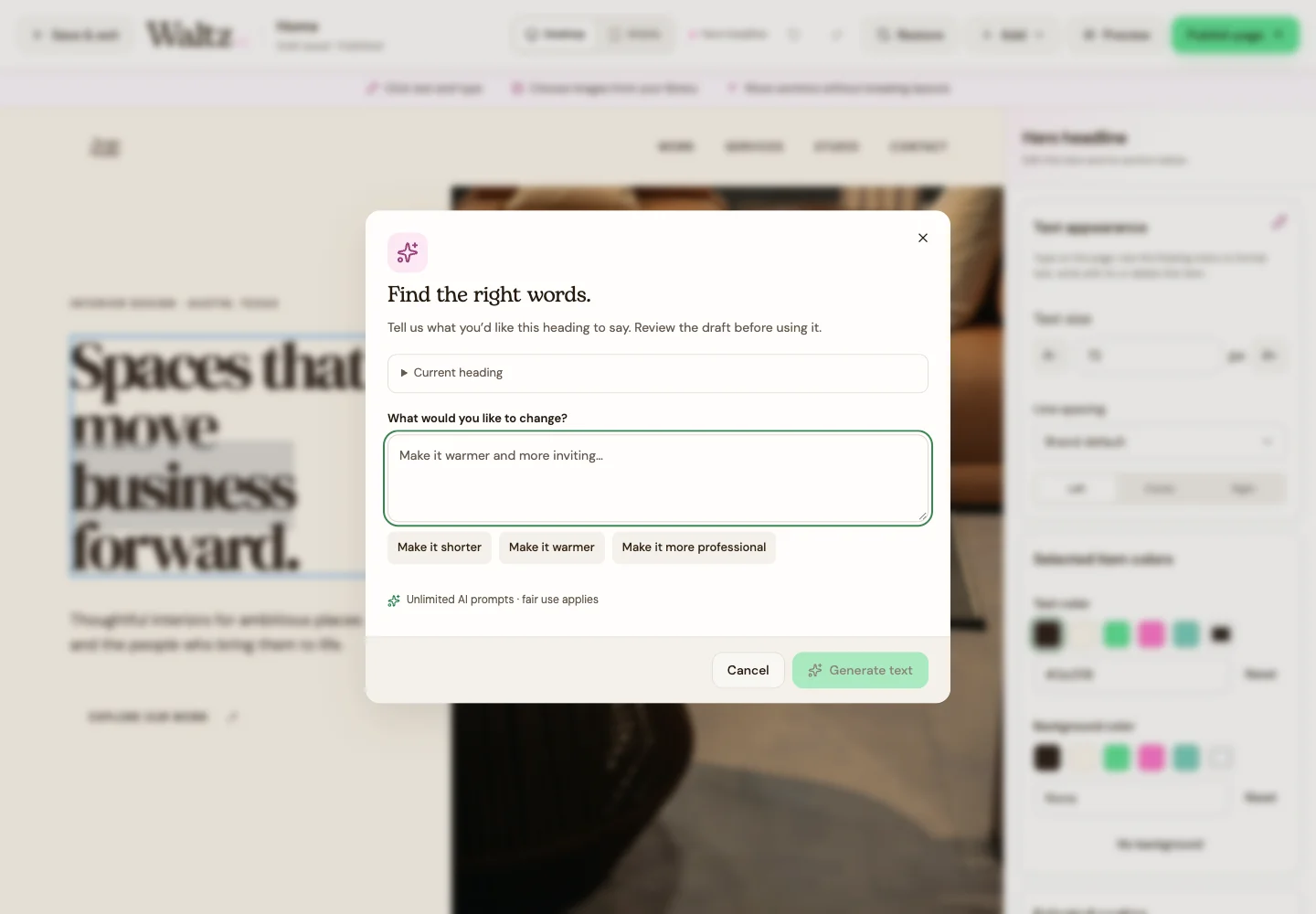
Select the text and choose Write with AI in the floating menu. The dialog is titled Find the right words.
-
In What would you like to change?, describe the result in everyday language. Try “Make this shorter and friendlier,” or choose a suggestion such as Make it warmer.
-
Choose Generate text. Read the draft before adding it.
-
Edit any words, facts, dates, prices, or names that need correction. Use Try again if you want another suggestion.
-
Choose Use this text to add the reviewed version to your page. Preview and save the draft, then publish separately.
See the steps
Use these views to find the controls as you follow the guide.
What happens next
Your selected text is updated with words you have reviewed and approved.
Helpful tips
-
You do not need to write a technical prompt. Ask for the change you want a customer to notice.
-
Make sure the suggestion accurately describes your business.